> ## Documentation Index
> Fetch the complete documentation index at: https://siderolabs-fe86397c-config-evolution.mintlify.site/llms.txt
> Use this file to discover all available pages before exploring further.
# Manage Omni Clusters with Nautik
> Use Nautik to view and manage your Omni-managed Talos Linux clusters from macOS, iPhone, or iPad.
[Nautik](https://nautik.io) is a native Kubernetes client for Apple platforms. It has a built-in Talos Omni integration that lets you authenticate and import clusters directly through a browser-based sign-in flow, without manually handling kubeconfig files.
This guide walks you through connecting Nautik to your Omni instance and importing a cluster.
## Prerequisites
Before you begin, ensure you have the following:
* A macOS, iOS, or iPadOS device with [Nautik](https://nautik.io/) installed.
* An active [Omni](https://www.siderolabs.com/omni-signup) account with at least one cluster created.
## Add a cluster to Nautik
Nautik connects to your Omni instance using a browser-based sign-in flow. Once authenticated, it lists the clusters available to your account so you can import them directly into the app.
To add a cluster:
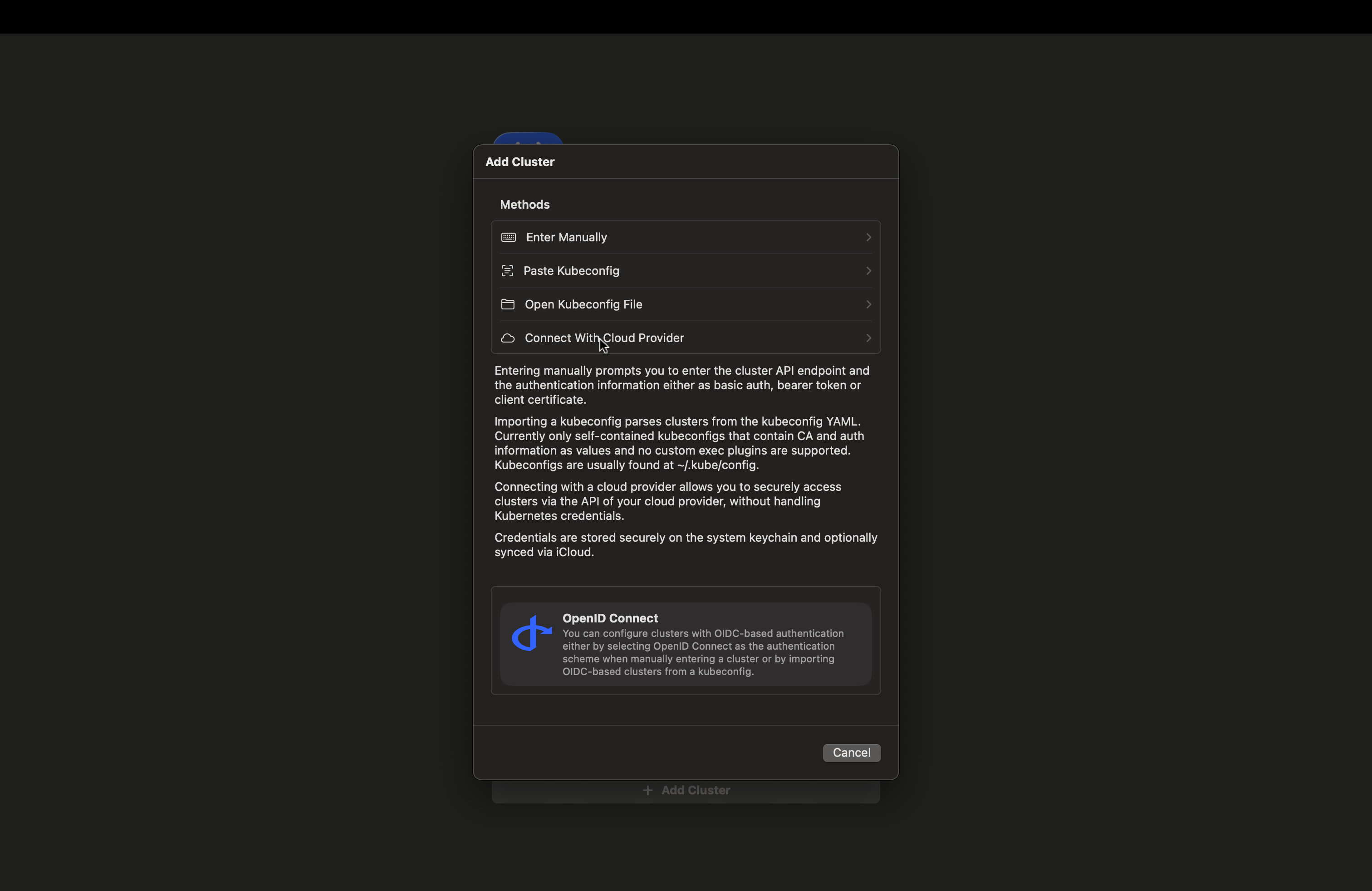
1. Open Nautik and click **+ Add Cluster**.
2. Click **Connect with Cloud Provider**.
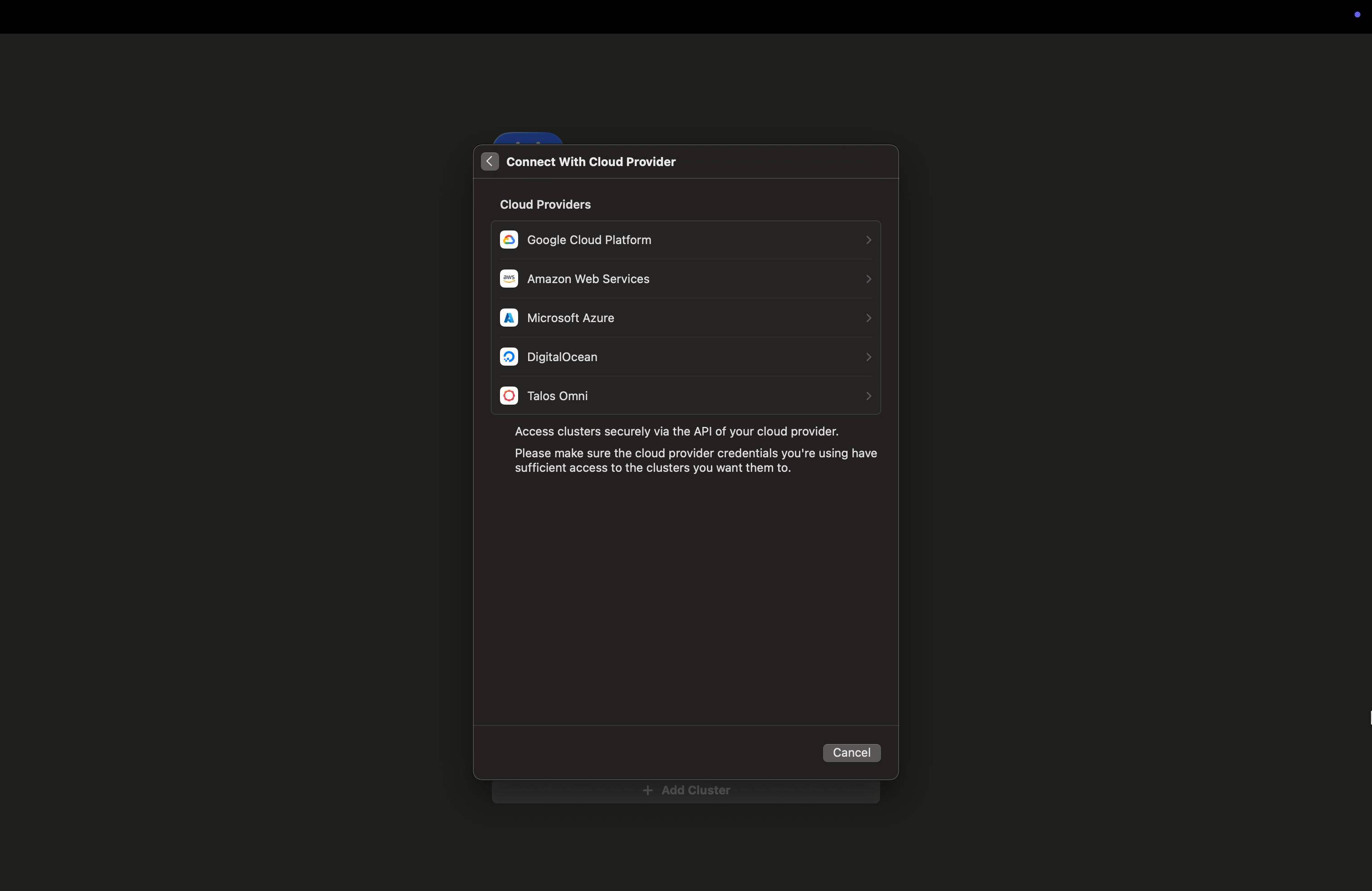
 3. Select **Talos Omni** from the list of providers.
 4. Enter your **Omni URL** and **Email Address**.
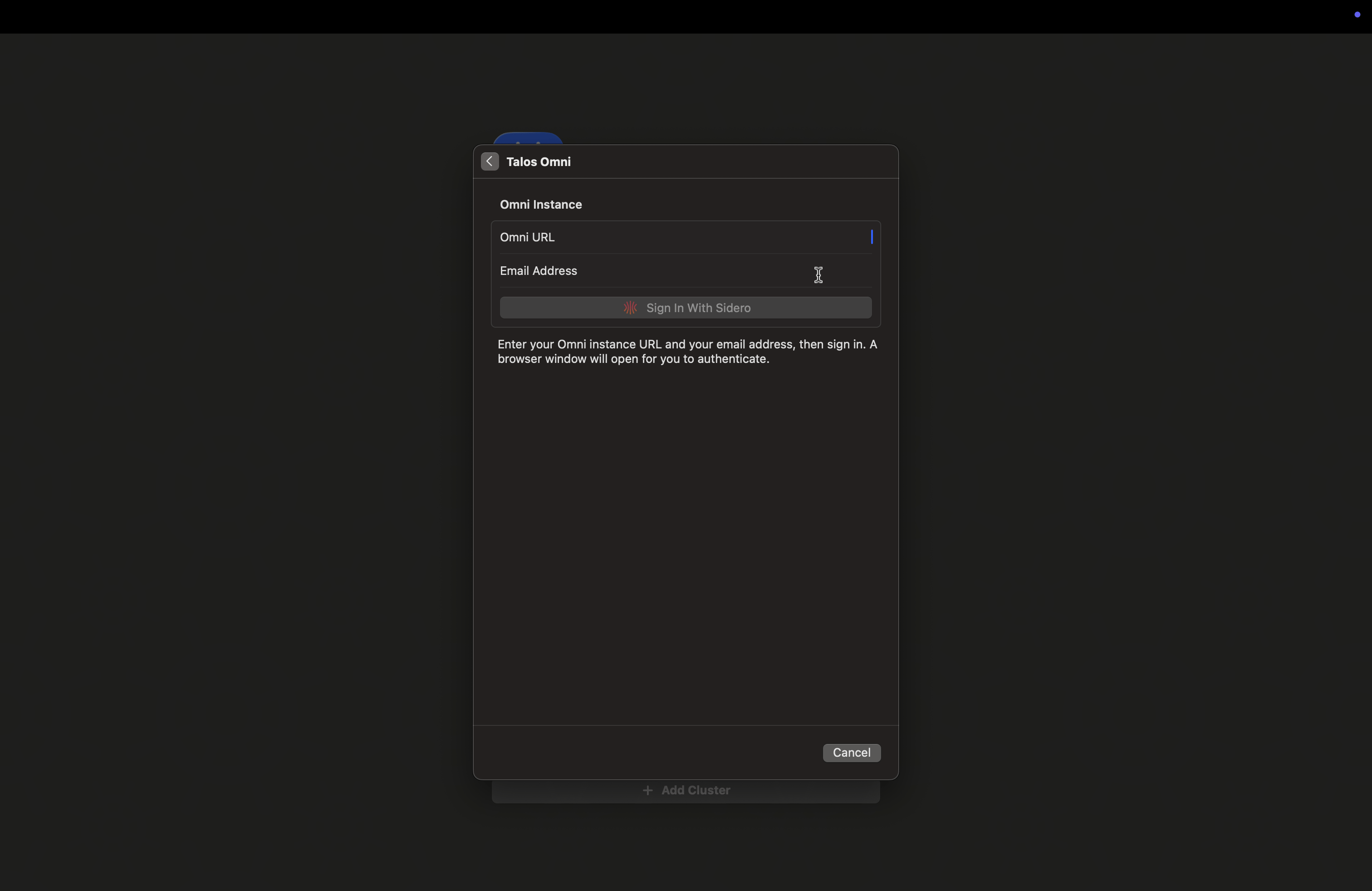 5. Click **Sign In With Sidero**. A browser window will open for you to authenticate.
6. Once authenticated, select your preferred **Auth Type**:
* **OpenID Connect**: Short-lived credentials. You will need to re-authenticate when they expire.
* **Service Account**: Long-lived token embedded in the kubeconfig. Works immediately after import with no additional login required.
5. Click **Sign In With Sidero**. A browser window will open for you to authenticate.
6. Once authenticated, select your preferred **Auth Type**:
* **OpenID Connect**: Short-lived credentials. You will need to re-authenticate when they expire.
* **Service Account**: Long-lived token embedded in the kubeconfig. Works immediately after import with no additional login required.
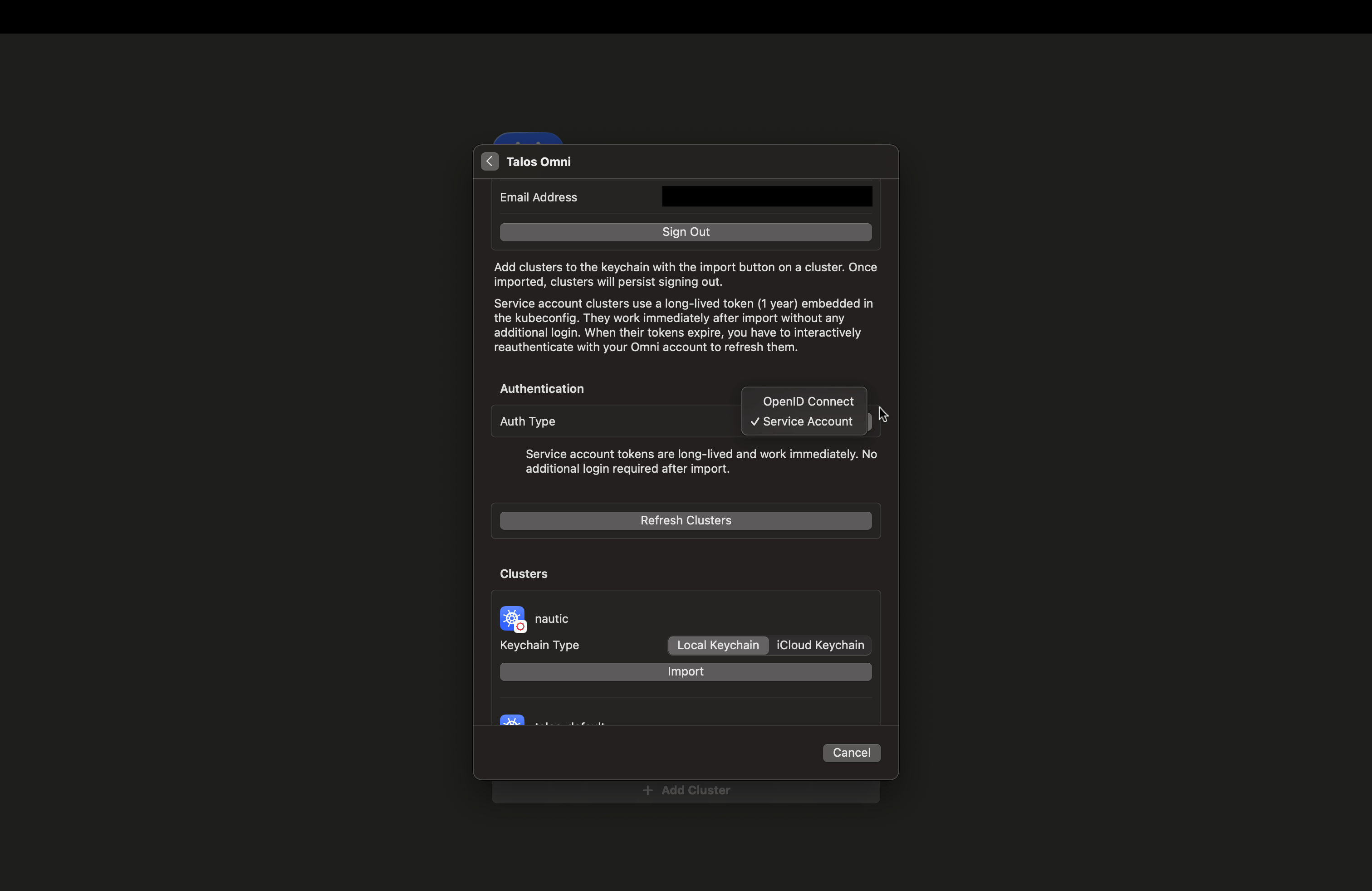 7. Click **Import** next to the cluster you want to add.
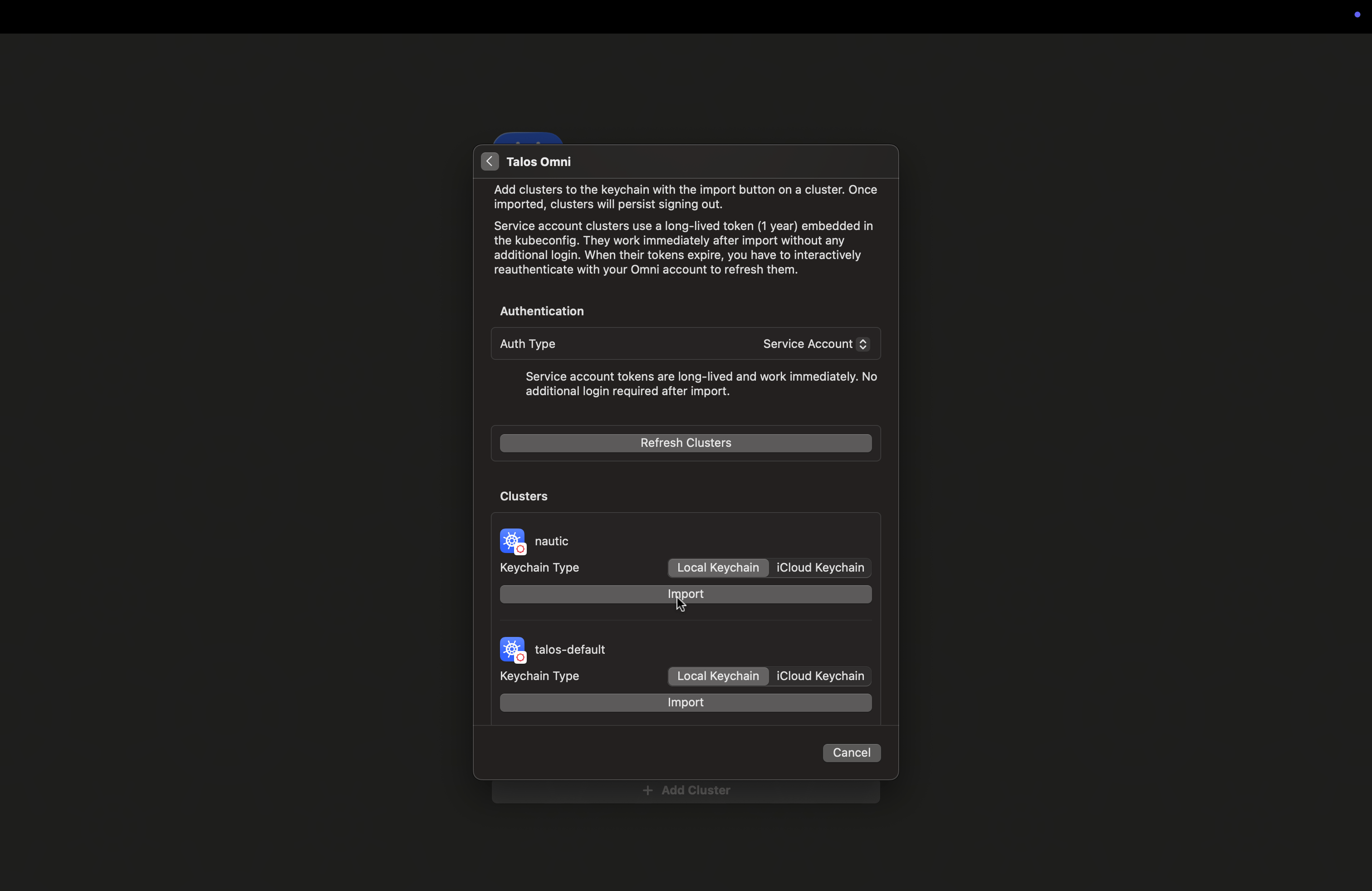 Nautik stores your credentials securely in the device keychain. You can choose between **Local Keychain** and **iCloud Keychain** at import time, iCloud Keychain syncs your cluster credentials across your Apple devices automatically.
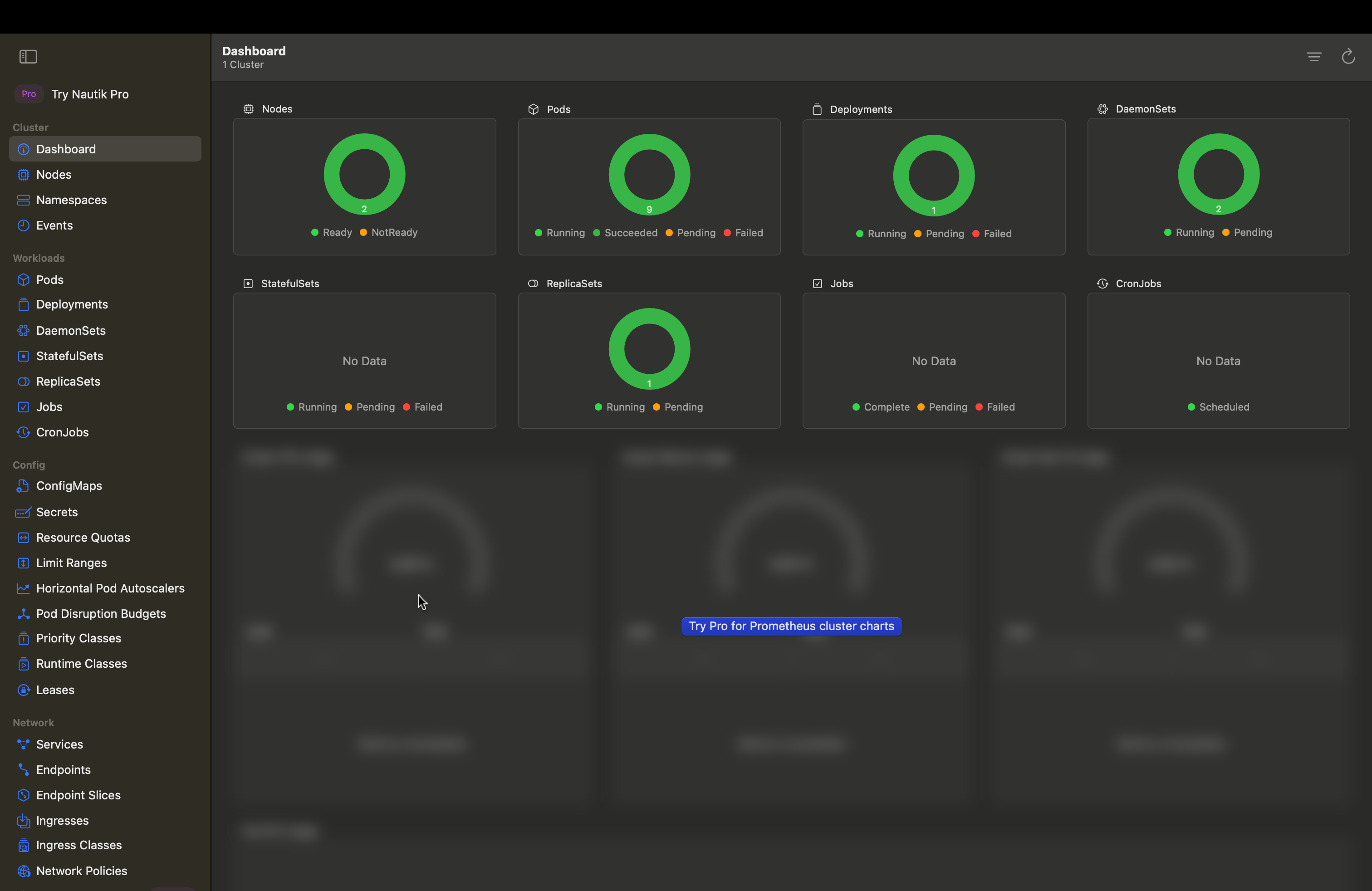
8. Close the modal and you should see information on your cluster in the Nautik dashboard.
Nautik stores your credentials securely in the device keychain. You can choose between **Local Keychain** and **iCloud Keychain** at import time, iCloud Keychain syncs your cluster credentials across your Apple devices automatically.
8. Close the modal and you should see information on your cluster in the Nautik dashboard.
 ## Remove a cluster from Nautik
If you need to remove a cluster from Nautik, you can do so at any time. Removing a cluster immediately and permanently deletes all stored credentials for that cluster from the device keychain.
To remove a cluster, right-click the cluster name in the cluster picker and select **Delete**.
## Remove a cluster from Nautik
If you need to remove a cluster from Nautik, you can do so at any time. Removing a cluster immediately and permanently deletes all stored credentials for that cluster from the device keychain.
To remove a cluster, right-click the cluster name in the cluster picker and select **Delete**.